Turn text prompts into Flux 3 videos
Describe the subject, action, setting, camera movement, lighting, pacing, dialogue, ambience, and sound effects. Flux 3 uses those details to create a video that follows your scene direction.
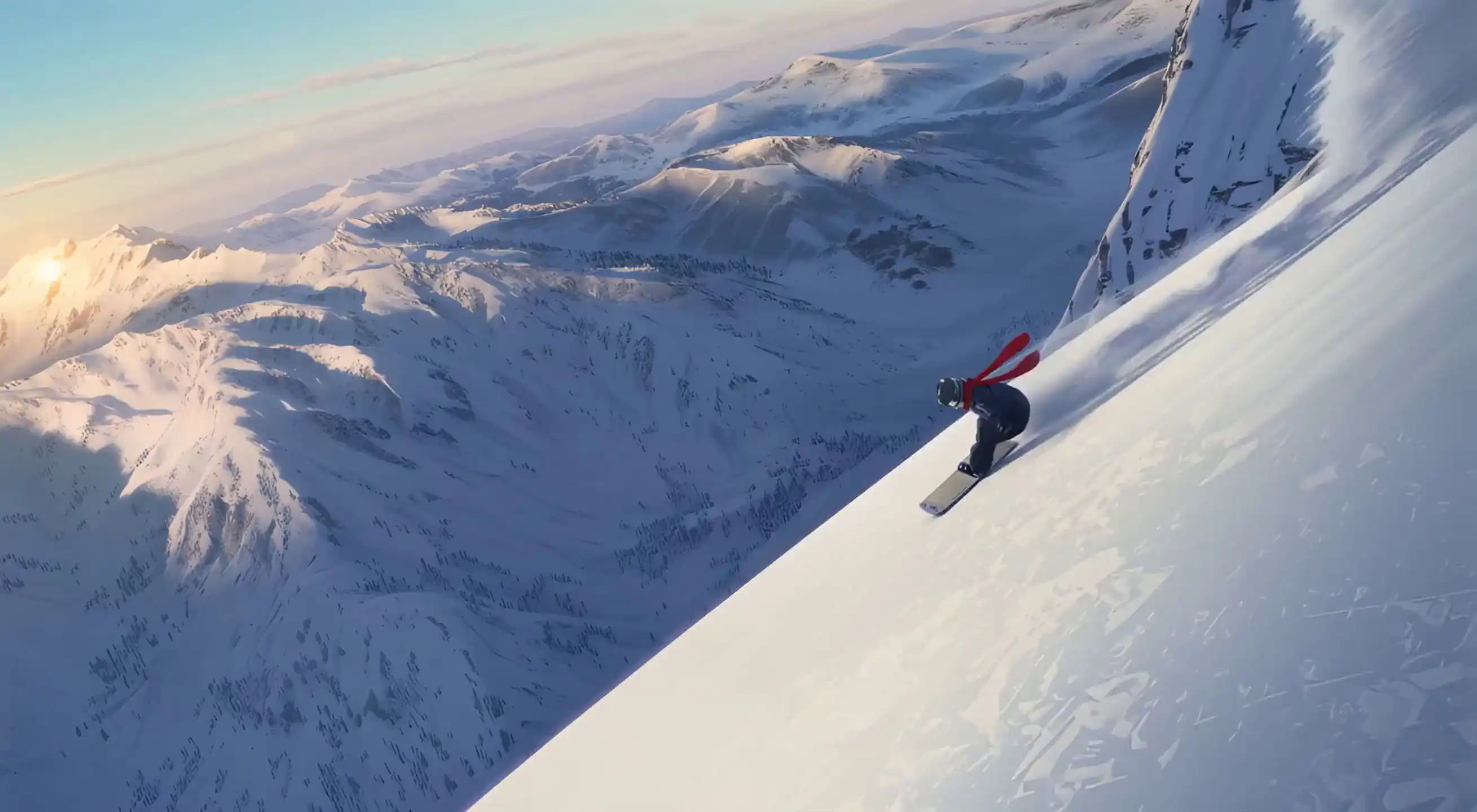
Create Flux 3 AI videos from text prompts, images, and creative references. Use the Flux 3 Video Generator to build cinematic clips with smooth motion, consistent visuals, and native audio-ready workflows.
Create Flux 3 AI videos from text prompts, images, and visual references in your browser. Describe the subject, scene, camera movement, style, timing, and sound direction, then generate a video for social posts, ads, product visuals, short films, or creative tests.
Start with a simple prompt or add an image to guide the look of the scene. Flux 3 Video helps creators build smooth motion, keep subjects consistent, and create videos in formats that fit each project.
Start with text, images, keyframes, or source clips. Then guide motion, timing, style, format, and audio direction in one AI video workflow.
Describe the subject, action, setting, camera movement, lighting, pacing, dialogue, ambience, and sound effects. Flux 3 uses those details to create a video that follows your scene direction.
Upload or reference an image to guide the character, product, composition, wardrobe, or visual style. Image-to-video is useful when you need more visual consistency than a text-only prompt can provide.
Use a source clip to guide movement, timing, or subject direction. Then create a new Flux 3 video with a different scene, style, camera style, or visual treatment.
Set the opening and ending moments of a shot so the camera move, product reveal, animation, or visual change has a clear direction. Keyframes help you guide the result when the final composition matters.
Continue an existing scene while keeping the motion, ambience, dialogue, or sound direction connected. This helps when you want to build another beat without restarting the whole creative brief.
Create connected short clips with reusable visual references for characters, products, settings, or style. This workflow helps teams plan longer stories instead of treating every generation as a separate clip.
Generate typography-led visuals, animated title cards, campaign graphics, and opening sequences for social posts, ads, branded content, and creative video projects.
Create clips for widescreen, vertical, square, or cinematic layouts. Use style direction to guide the look, from realistic handheld footage to stylized animation.
Guide dialogue, environmental sound, ambience, and physical sound effects in the same prompt you use for the scene. This helps the video feel more connected from the first draft.
Explore four wide-format Flux 3 video results across natural environments, first-person action, cinematic character work, and stylized animation. Each example is presented in its original 16:9 frame.
A wide coastal study built around heavy surf, sea spray, distant birds, and layered atmospheric movement.
A rider-level chase sequence exploring speed, camera shake, wet-road reflections, and close physical motion.
A formal dance staged through reflections, warm chandelier light, repeating figures, and controlled cinematic blocking.
A handcrafted character moment combining tactile clay materials, warm practical lighting, and expressive stop-motion movement.
Create a Flux 3 video in a few steps. Start with a clear prompt, add an image or visual reference if needed, choose the format, then generate the clip. Review the result and adjust your prompt for another version.
Describe the subject, action, scene, camera movement, lighting, visual style, timing, and sound direction. A detailed prompt helps the Flux 3 Video Generator understand what should happen in the clip.
Use an image when you want to keep a character, product, composition, wardrobe, color palette, or brand style consistent. References can make the result more consistent than a text-only prompt.
Select the aspect ratio, duration, and generation mode for your project. Use vertical video for social media, landscape video for YouTube or ads, and cinematic framing for film-style scenes.
Generate your video and review the motion, visual consistency, and pacing. Adjust the prompt, subject details, camera movement, or sound direction to create a stronger version.
Create videos for campaigns, products, explainers, stories, localization, and concept work. Start with text, images, clips, or visual references, then guide the motion, format, dialogue, and sound for each project.
Turn hooks, storyboards, product images, or brand references into short video concepts for launches, Reels, Shorts, and ad testing.
Social ads · Product launches · Creative testingUse product photos, packaging shots, or brand visuals to guide motion, materials, close-up details, and lifestyle scenes.
Product videos · Listing media · Brand visualsTurn a script beat into camera movement, blocking, lighting, atmosphere, dialogue, and sound direction before a shoot or pitch.
Previs · Storyboards · Pitch scenesTransform lesson ideas, product instructions, or training topics into visual video drafts with clear pacing and narration cues.
Explainers · Tutorials · Training clipsGuide dialogue, pacing, visual continuity, and sound direction for localized campaigns, explainers, and character-led videos.
Localization · Dialogue · Global campaignsDevelop environments, character moments, music visuals, game concepts, or connected short clips using prompts and references.
Worldbuilding · Music visuals · Concept videosCompare the core details creators check before choosing an AI video generator. This quick table keeps the focus on Flux 3 while showing how major alternatives differ.
| What creators compare | FLUX 3 VideoAvailable | Veo 3.1Available | Sora 2Deprecated API | Runway Gen-4.5Available |
|---|---|---|---|---|
| Native outputResolution and frame rate | HD / Full HDExact settings may vary by provider. | 720p / 1080p / 4K · 24fps | Up to 1080p | 720p · 24/25fps |
| Single-clip durationHow long one generation can hold | Up to 20 seconds | 4, 6, or 8 seconds | 16 or 20 seconds | 2–10 seconds |
| Input & controlT2V, I2V, V2V, frames, references | Text, images, keyframes, continuation | Text, image, frame controls | Text, images, extensions, edits | Text-to-video + image-to-video |
| Native audioDialogue, ambience, SFX, lip sync | Yes | Yes | Yes | No native audio in Gen-4.5 spec |
| Continuity workflowCharacter, style, and multi-shot cohesion | References + connected scenes | Frame and reference guidance | Character reuse + extension | Image-anchored clips |
| Aspect ratiosLandscape, vertical, square, cinematic | Flexible formatsUse site-available ratios. | 16:9 and 9:16 | Landscape and portrait | 16:9, 9:16, 1:1, 4:3, 3:4, 21:9 |
Specifications checked August 21, 2026 from provider documentation. Availability, output settings, pricing, and limits may change by provider or integration.
Buy credits once and use them whenever you create with the Flux 3 Video Generator. Credits are deducted only after a successful video generation.
You only pay for completed generations.Perfect for trying out Flux 3 — generate a few short video clips and test the workflow.
For creators generating regularly — better per-credit value for ongoing Flux 3 video workflows.
Best value for teams and content pipelines — more video generations at a lower per-credit cost.
Lowest per-credit cost for high-volume production — campaigns, client work, and daily output at scale.
The Flux 3 Video Generator is an online AI video tool for creating videos from text prompts, images, and visual references. You can guide the subject, scene, camera motion, style, timing, and audio direction in one browser workflow.
Choose a generation mode, write a clear prompt, add an image or reference if needed, select the format, then generate the video. Review the result and adjust your prompt for another version.
Yes. Write a prompt that describes the subject, action, setting, camera movement, lighting, pacing, and sound direction. The generator uses those details to create an AI video clip.
Yes, where image-to-video is available. Upload or reference an image to guide the character, product, composition, or visual style, then describe the motion you want.
Flux 3 supports common video layouts such as landscape, vertical, square, and cinematic ratios. Available duration, resolution, and ratio options may vary by selected mode or provider.
Commercial use depends on the site’s Terms of Service and the rights you hold for any uploaded images, clips, prompts, or references. Review the terms before using generated videos in paid campaigns or client work.
Turn prompts, images, and visual references into AI video clips with a browser-based Flux 3 workflow.